How to setup TotalPay for Zoho Books
Step 1: Install the TotalPay extension
- The TotalPay extension is available in the Zoho Books app marketplace. Visit the marketplace via this link.
- Click on the Install button to begin the installation process.
- A dialog box will appear where you need to accept the terms of service, select your Zoho organization, and then click Install.
Step 2: Access Totalpay Plugin Settings
- Navigate to Settings in Zoho Books.
- Select Online Payments from the options available.
- From the list of payment methods, find and select TotalPay.
Step 3: Enter Your API Keys
- In the TotalPay plugin settings, you will need to enter your Account ID and Sign Key.
- You can get these key details from your TotalPay Relationship Manager.
- Enter the keys into the respective fields and save your configuration.
Set up TotalPay under Zoho Invoices
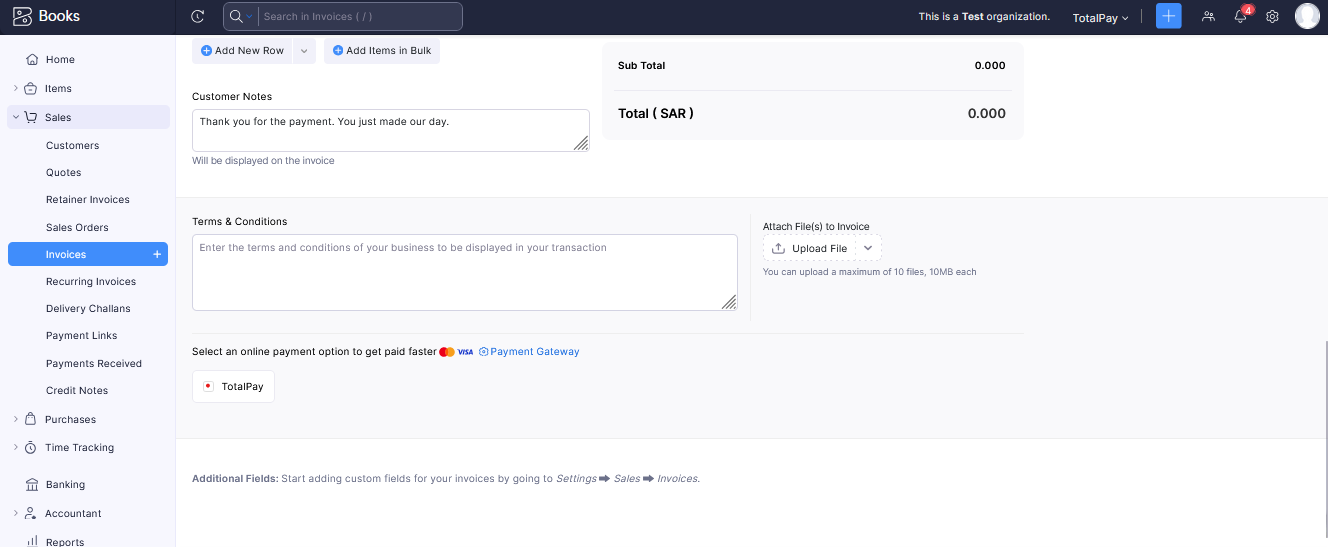
Create an invoice and select the payment method as TotalPay
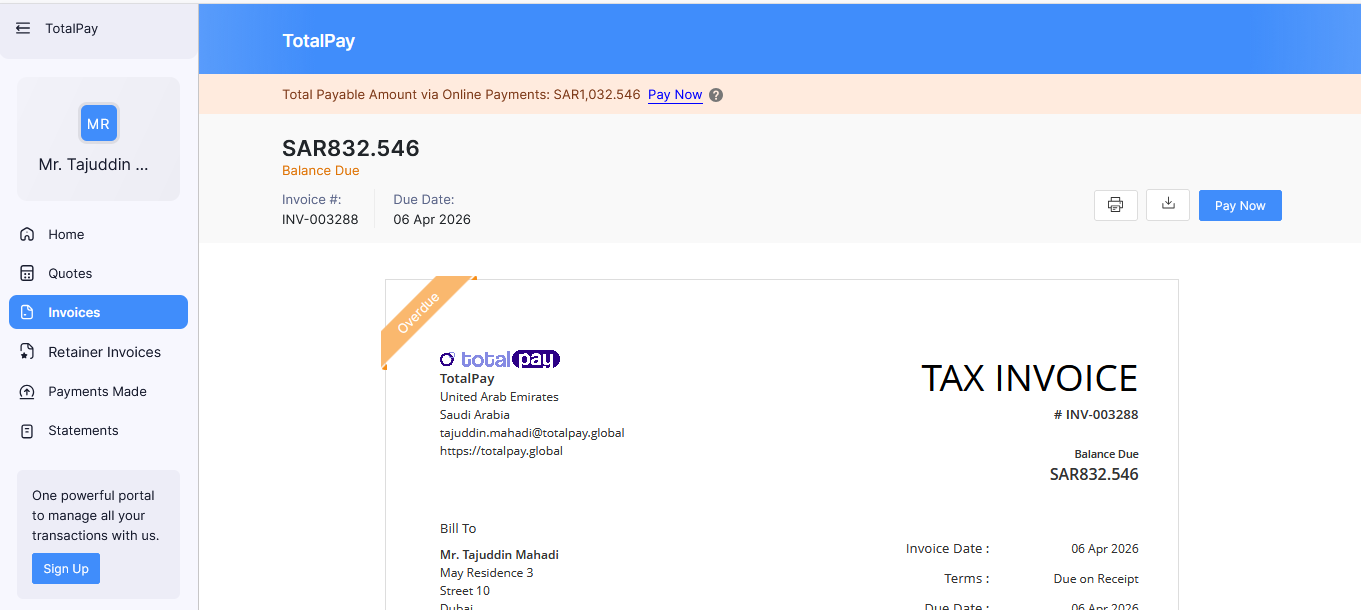
Your customers will receive the invoice with the option to pay the invoice online.
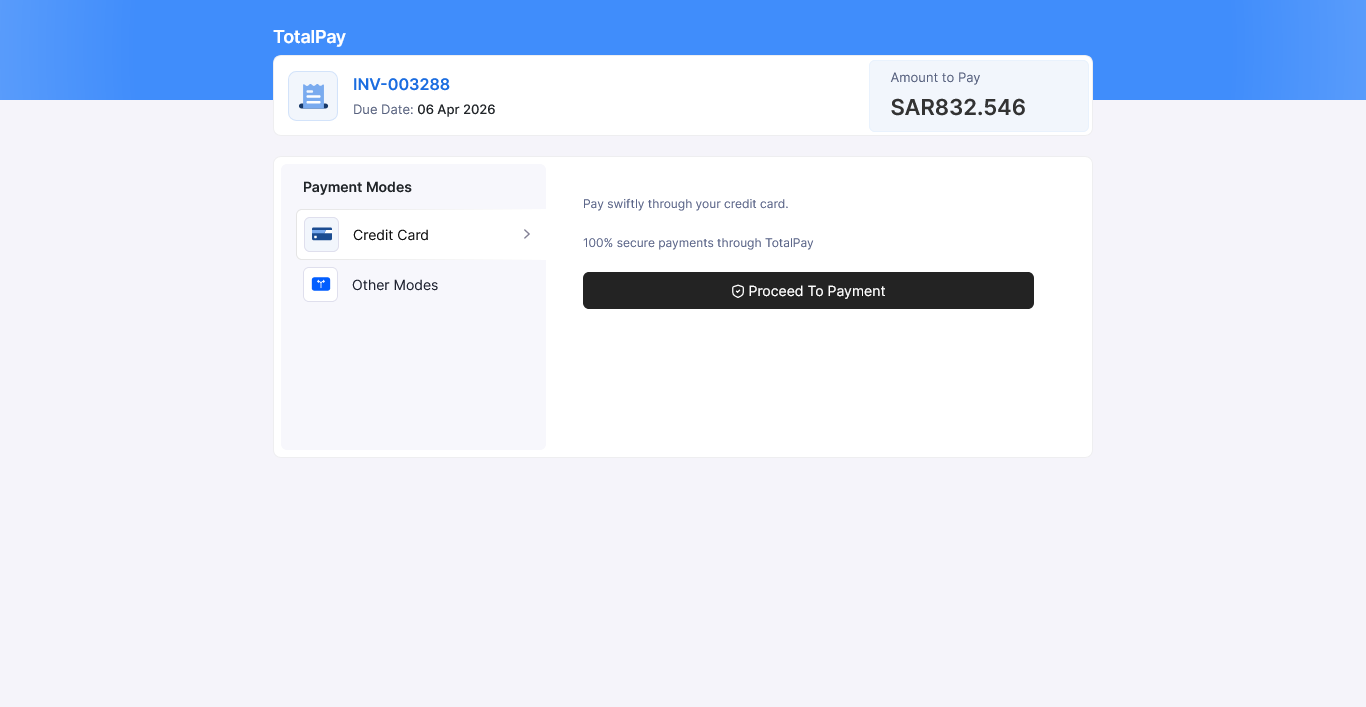
Customers can choose to pay using a credit card/wallets
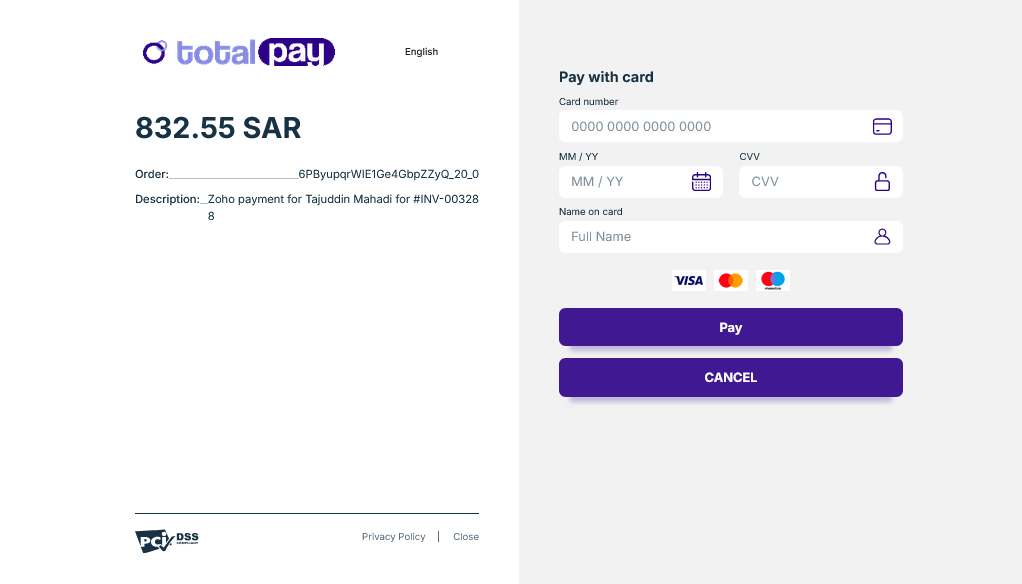
Your customers can see the payment page where they can pay the invoice via card or other payment methods enabled on your account.